
Chrome Extension
The Ferndesk Chrome extension gives you instant access to your AI documentation assistant from anywhere in your browser. Chat with Fern, create articles, search your help center, and update documentation without switching tabs.
What the extension does
The Ferndesk extension adds an AI-powered sidebar to Chrome that lets you:
Chat with Fern to ask questions about your documentation
Create and update articles using natural language
Search your help center
The extension works anywhere in Chrome, not just on your help center pages. Open the sidebar from any website using the keyboard shortcut or context menu.
Prerequisites
An active Ferndesk account
Google Chrome browser (version 114 or later)
Active Ferndesk login session in the same browser
Installing the extension
Open Google Chrome on your desktop computer.
Navigate to the Ferndesk extension page in the Chrome Web Store.
Click the Add to Chrome button in the top right corner.
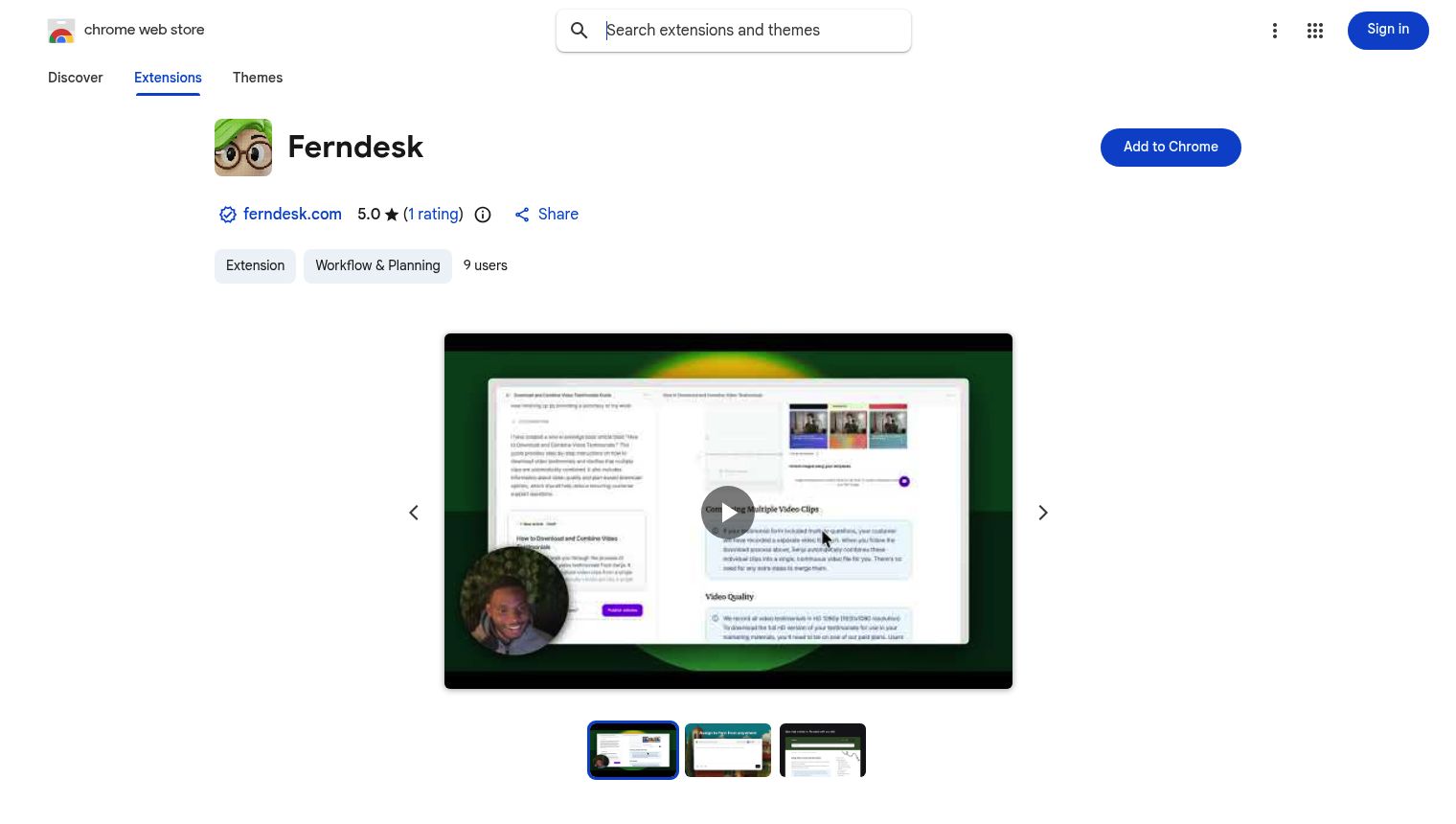
In the confirmation dialog that appears, click Add extension.
Chrome will confirm the extension has been added with a brief notification.
Once installed, the extension works automatically. No additional configuration is required.
Pinning the extension (optional)
To make the extension icon always visible in your toolbar:
Click the puzzle icon (Extensions menu) in your Chrome toolbar.
Find 'Ferndesk' in the list.
Click the pin icon next to it.
The Ferndesk icon will now appear in your toolbar for quick access.
Opening the sidebar
There are three ways to open the Ferndesk sidebar:
Keyboard shortcut
Press Alt+F (or Option+F on Mac) from any webpage to open the sidebar.
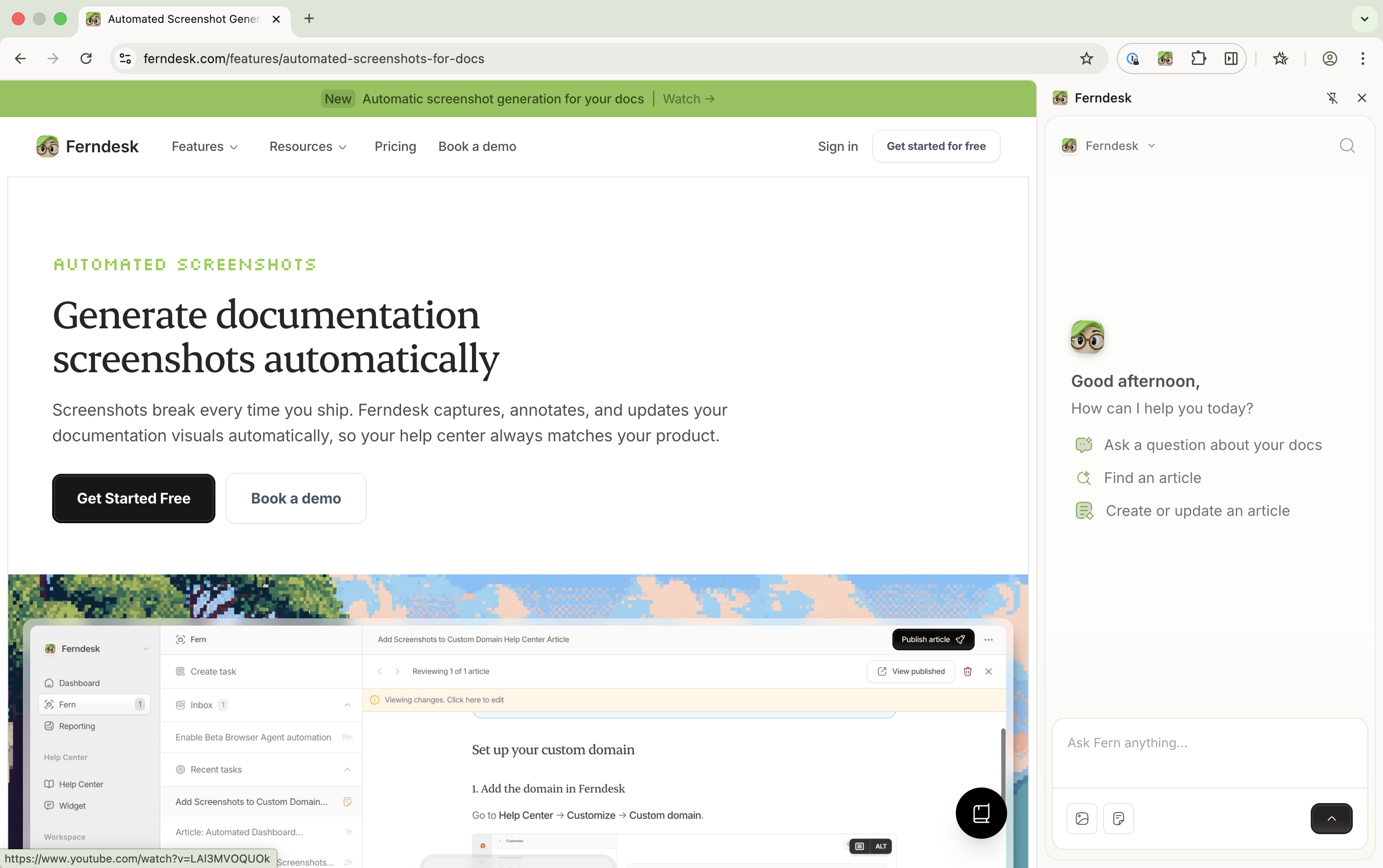
Context menu
Select any text on a webpage.
Right-click the selected text.
Choose Send to Fern from the context menu.
The sidebar opens with your selected text automatically added to the chat input.
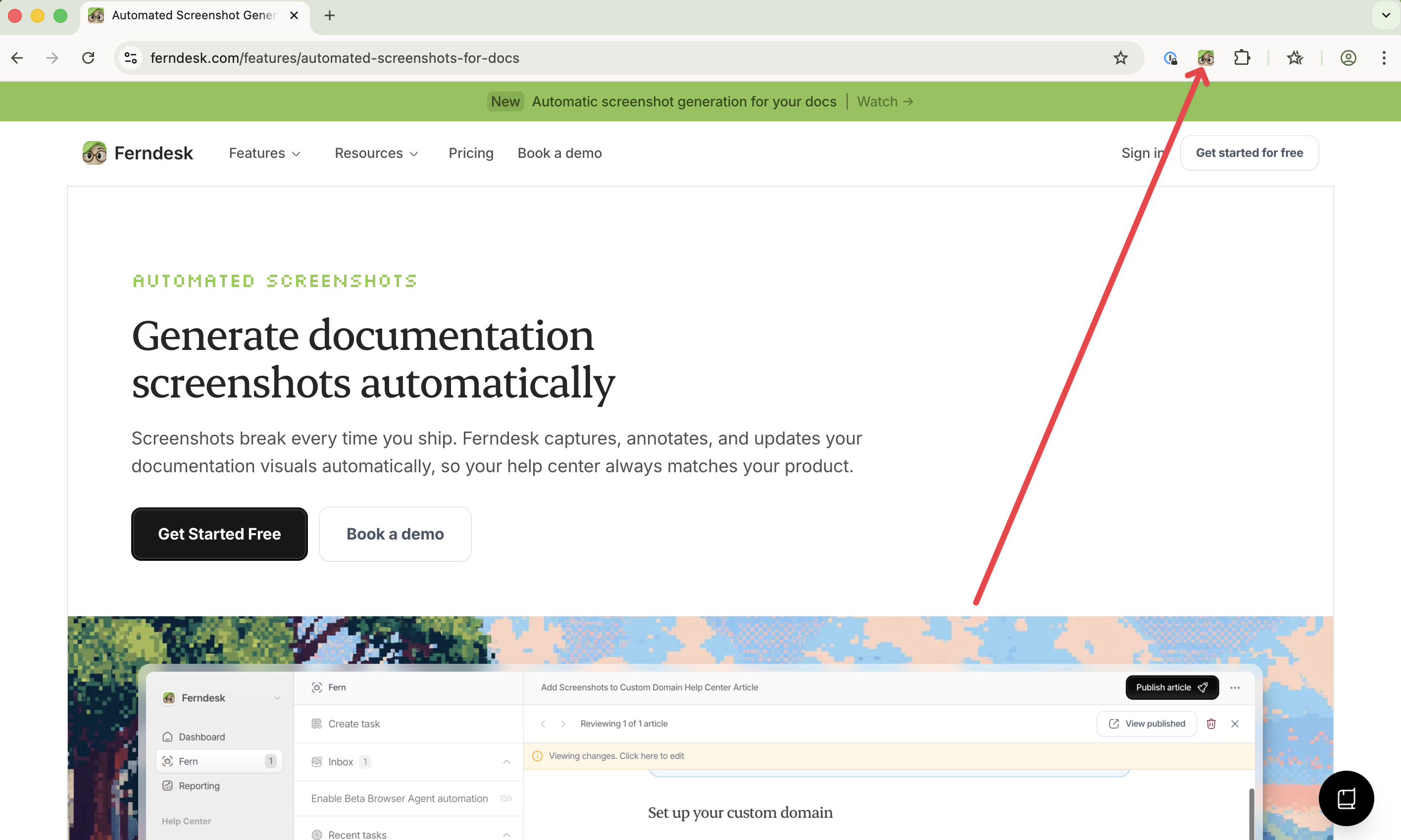
Extension icon
Click the Ferndesk icon in your Chrome toolbar to open the sidebar.
Automatic page context
When you open the sidebar, Ferndesk automatically captures context from the current webpage you're viewing. This helps Fern understand what you're working on and provide more relevant assistance.
Compatibility
Browser: Google Chrome version 114 or later (desktop only)
Plans: Available on all Ferndesk plans
Roles: All authenticated users (Admin, Editor)
Managing the extension
Clearing chat history
Click the "Clear chat" button at the top of the sidebar to start a new conversation. Previous messages are removed from view.
Disabling temporarily
Go to chrome://extensions/ in your browser.
Find 'Ferndesk' in the list.
Toggle the switch to disable.
Uninstalling completely
Right-click the extension icon in your Chrome toolbar.
Select Remove from Chrome.
Click Remove in the confirmation dialog.
Alternatively, go to chrome://extensions/, find 'Ferndesk', and click Remove.
Limitations
Desktop only: Chrome extensions don't work on mobile devices
Active session required: You must be logged into Ferndesk for the extension to function