
GitHub integration
This guide will walk you through the process of connecting your GitHub account to Ferndesk. This integration allows Fern to browse your codebase and understand how features work, which helps in generating more accurate and relevant help center articles.
Watch this video to learn how the GitHub integration works 👇
Before you begin
You will need to have a GitHub account to complete this integration. If you don't have one, you can create one on the GitHub website.
Connection Steps
Navigate to the Integrations page in your Ferndesk settings.
Find GitHub in the list of integrations and click "Connect".
You will be redirected to GitHub to authorize the connection. Log in to your GitHub account if you are not already logged in.
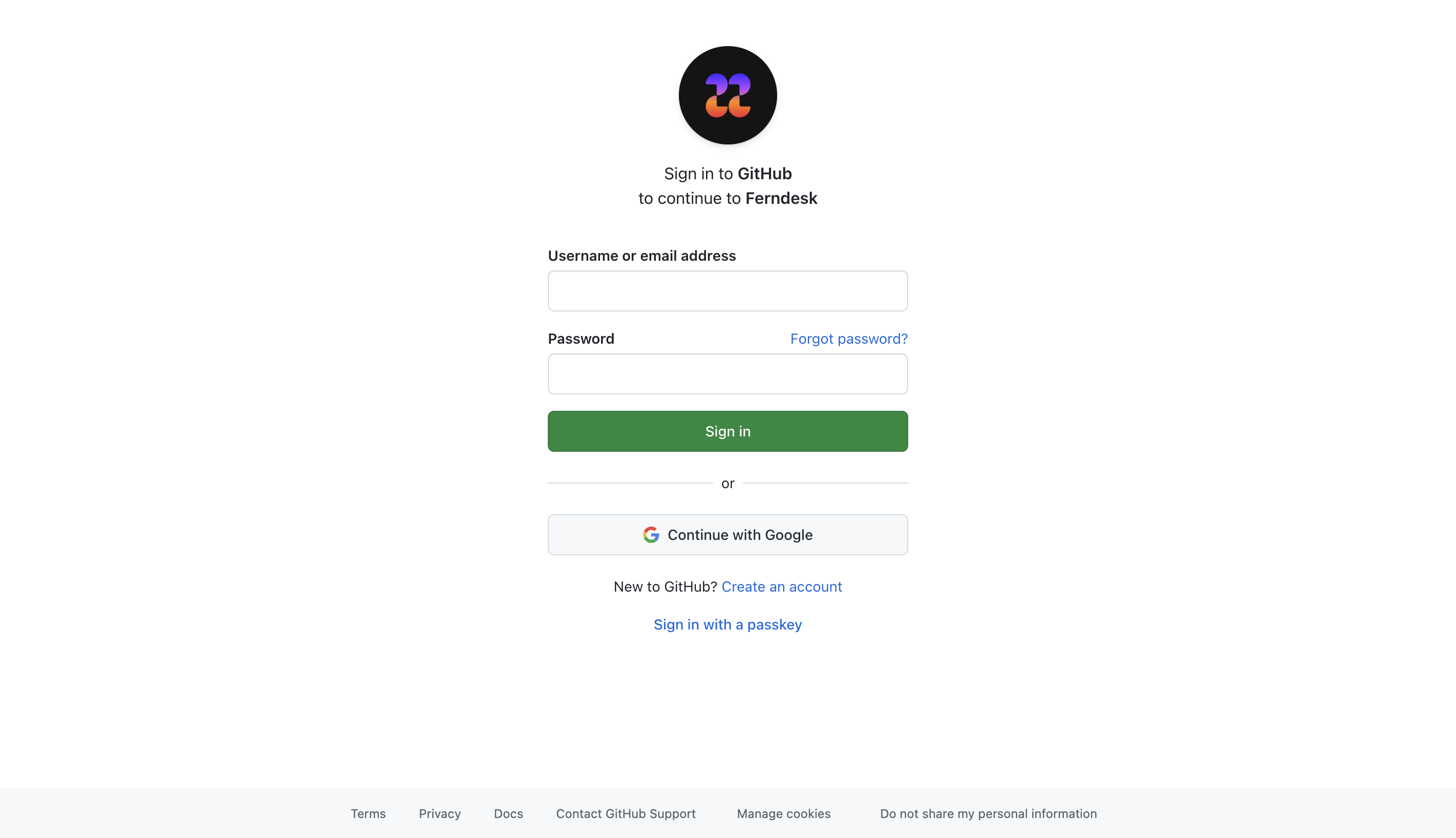
Follow the on-screen instructions to grant Ferndesk permission to access your GitHub account. You'll be able to select which repositories to connect—you can choose multiple repositories if your project spans multiple repos (for example, a backend and dashboard in separate repositories).
Once you have authorized the connection, you will be redirected back to Ferndesk.
Once connected, Fern will be able to browse your codebase to provide more accurate and relevant help center articles.
Managing Connected Repositories
After your initial setup, you can add or remove repositories by visiting your GitHub app settings. Go to your GitHub account settings, navigate to Applications, and find Ferndesk in your installed integrations to adjust repository access.
Additional Resources
For more information on GitHub's features, you can visit their Help Center.